
WebM Audio Checker: Why Does My WebM Have No Sound?
Inspect the first 64 KB of a .webm, .ogg or .opus recording locally in your browser to see whether it actually contains an audio track, which codec it uses, or why playback is silent.
Header inspection runs locally via File.slice(0, 65536) without uploading your file. When a valid audio track is present (up to 100 MiB and 45 minutes, mono or stereo), you can convert it in the WebM to MP3 converter.
WebM, Ogg and voice-note audio track checker
Find out what a file really contains before converting it: WebM or Matroska, Ogg Opus (such as a WhatsApp voice note), Ogg Vorbis, or a renamed MP4, WAV or MP3. The checker reads container headers only. It does not decode, repair or upload the file.
Try a sample header
Check your own file
Or drop a file here. Only the first 64 KB are read, in this browser tab; the file is not uploaded and is not changed.
Sample: screen-capture-no-mic.webm
Video-only WebM: there is no audio track
No audio track in the container
The container lists only video (TrackType 1, V_VP8) and no TrackType 2 audio track. That is why this WebM has no sound: the recorder never stored audio, so no converter can create it. This is different from a present but silent audio track.
- Magic bytes
- 1A 45 DF A3 9F 42 86 81
- Container
- WebM (EBML DocType "webm")
- File extension
- .webm
- Tracks
- 1 (0 audio, 1 video)
- Track 1
- Video (TrackType 1) · V_VP8
Next step: Record again with microphone or tab/system audio enabled (for example, tick “Share tab audio” when screen recording), then convert the new file.
ffprobe -v error -show_entries stream=index,codec_type,codec_name -of compact input.webmHeader checks cannot hear silence: a WebM can contain an audio track whose waveform is silent. Learn more in the WebM codecs guide, the Opus to MP3 guide, the FFmpeg and VLC guide and the MP3 bitrate guide.
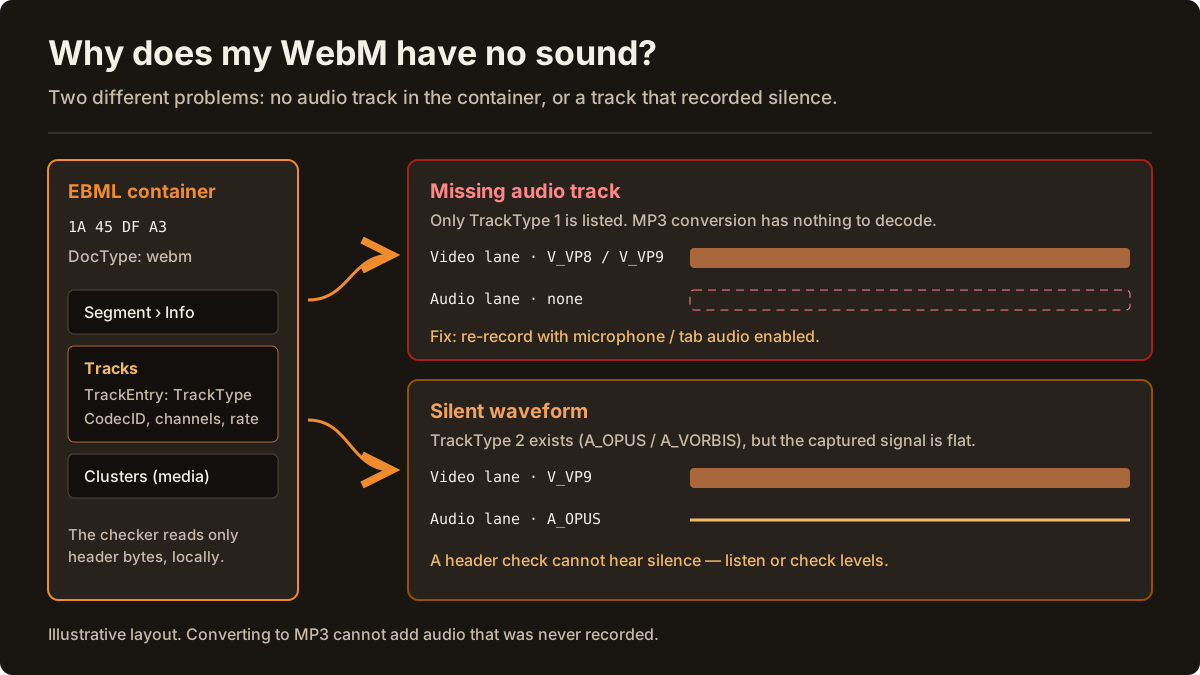
3 reasons a WebM file has no sound (and how to tell them apart)
- Video-only container (no TrackType 2): Screen captures created with
canvas.captureStream()orgetDisplayMedia({ video: true })without audio permission contain aTrackType 1video stream (V_VP8,V_VP9orV_AV1) and zero audio tracks. Converting a video-only file to MP3 cannot invent sound that was never recorded. - Audio track present, but recorded waveform is silent: The EBML
Trackselement includesTrackType 2(A_OPUSorA_VORBIS), yet the microphone was muted, hardware input gain was zero, or browser tab audio was not shared. Decoding the file in the converter reveals Peak and RMS levels near-100 dBFS. - Misnamed container or unsupported codec: A file saved as
.webmmay actually start withOggS(an Ogg Opus voice note) or an ISO BMFFftypbox (an MP4 recording). Inspecting the magic bytes identifies the real container immediately.
Verify WebM audio tracks from the command line with ffprobe
To list every track inside a WebM or Matroska container on your computer, run ffprobe and inspect the stream table:
ffprobe -v error -show_entries stream=index,codec_type,codec_name,channels,sample_rate -of default=noprint_wrappers=1 input.webmIf ffprobe prints only codec_type=video, the file has no audio stream. If an audio stream is present and you want to measure its actual peak and mean volume in decibels, run FFmpeg's volumedetect filter:
ffmpeg -i input.webm -map 0:a:0 -vn -af volumedetect -f null -A max_volume near -91.0 dB or -inf dB confirms that the recorded audio track contains digital silence rather than a playback bug.
Next steps based on what the checker finds
- Valid WebM with Opus or Vorbis audio: Open the extract audio from WebM guide or convert directly on the homepage converter.
- Ogg Opus or WhatsApp voice note (OggS + OpusHead): Use the WhatsApp audio to MP3 converter & guide, the OGG to MP3 converter, or the Opus to MP3 guide.
- Duration shows 0:00 or Infinity:00 in players: Live
MediaRecorderstreams often omit the EBMLSegment/Info/Durationfloat even when audio is intact. See how to fix WebM duration. - Multi-track or oversized files (>100 MiB / >45 min): Follow the FFmpeg and VLC desktop guide and compare codecs in the WebM audio codecs guide.
Frequently asked questions
- Why does my WebM file have no sound?
- The two most common causes are a video-only WebM container that has no TrackType 2 audio track (for example canvas.captureStream() or a tab shared without audio) or an audio track recorded from a muted microphone. Inspecting the container header tells these cases apart immediately.
- How does the WebM Audio Checker inspect my file?
- It reads the first 64 KB of your file locally in the browser using File.slice() and checks the magic bytes (EBML 1A 45 DF A3 for WebM/Matroska, OggS for Ogg/Opus, or ftyp for MP4) plus track entries and codec headers without uploading the file.
- Can converting a video-only WebM to MP3 restore missing sound?
- No. If the WebM container has no audio track (TrackType 2 is absent), no audio samples were recorded. You must re-record with microphone or system-audio capture enabled or mux a separate audio file with FFmpeg.
- What if the checker finds an audio track, but playback is still silent?
- When TrackType 2 (A_OPUS or A_VORBIS) is present yet you hear nothing, either the recorded waveform is digital silence (-infinity dB from a muted input) or the player does not support the codec. Load the file in the converter to check Peak and RMS dBFS levels.
- How do I check WebM audio tracks from the command line?
- Run ffprobe -v error -show_entries stream=index,codec_type,codec_name,channels,sample_rate -of default=noprint_wrappers=1 input.webm to list every video and audio stream in the container.