
Extract Audio from WebM Video and Save It as MP3
Convert the audio from a supported WebM video or screen recording to an MP3 file without uploading the recording for conversion. The MP3 omits video; your source WebM is unchanged. A recording must contain a decodable audio track to produce useful audio.
Browser limits: 100 MiB per WebM file, up to 45 minutes of audio, one Opus or Vorbis audio track, mono or stereo. Available memory and browser decoding support still matter.
Load .webm audio file
Drag file here or click to browse · Max file size: 100 MiB
Local Conversion History
0 filesSaved in IndexedDB. History can remain after closing this tab.
100% Local Privacy
Audio never leaves your browser. Zero upload bandwidth, no remote telemetry.
Opus Preflight Engine
Parses EBML container headers, channel layouts, and fixes live MediaRecorder duration tags.
MPEG Frame Verifier
Checks MPEG Layer III headers and complete frame boundaries; reports the frame timeline, not decoded audio quality.
How to extract audio from WebM
- Select the WebM recording using the converter above. Wait for container inspection and browser decoding.
- Confirm the audio preview contains the microphone or system sound you want. Silent source audio stays silent after conversion.
- Choose an MP3 bitrate and start conversion. The audio is decoded to PCM and encoded as MP3; video is not exported.
- Download and listen to the MP3. Keep the source if you may need its video, original codec or other tracks later.
For large recordings, unsupported containers or multiple audio tracks, use the FFmpeg or VLC desktop workflow instead of repeatedly retrying a browser memory failure.
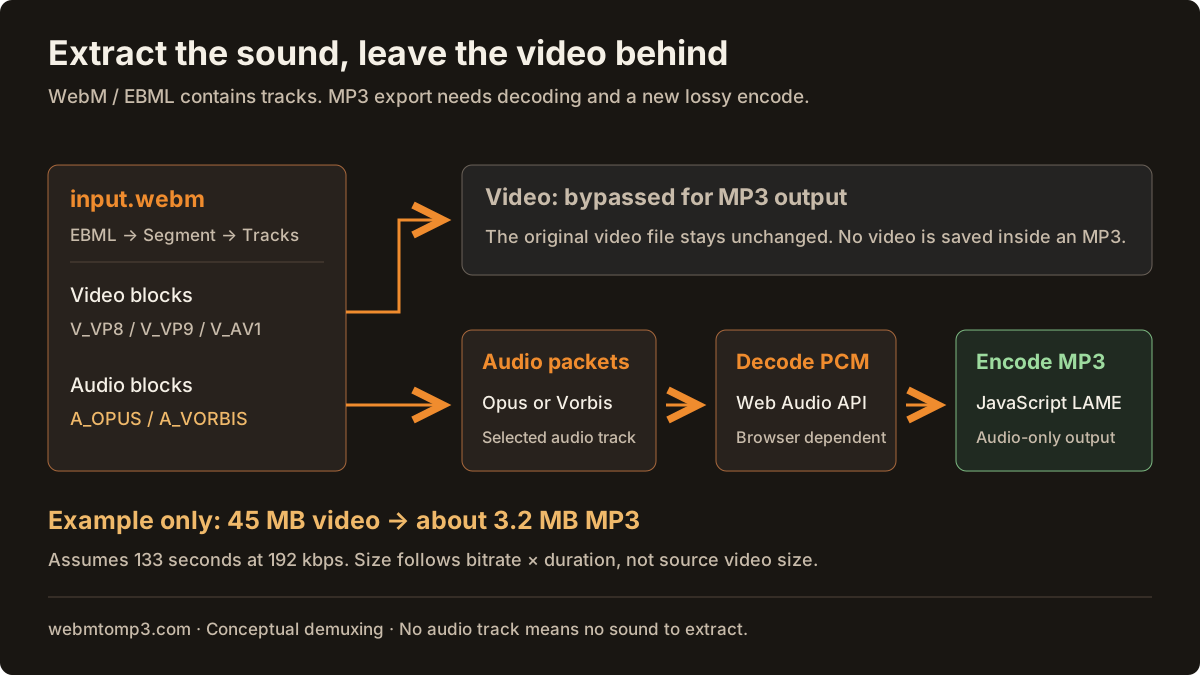
Does WebM have audio? Inspect the tracks, not the extension
WebM is an EBML-based container derived from Matroska. It can hold video, audio or both. Common video identifiers are V_VP8, V_VP9 and V_AV1; supported audio identifiers here are A_OPUS and A_VORBIS. Seeing a picture or a .webm extension does not prove that microphone sound was captured.
ffprobe -v error -select_streams a -show_entries stream=index,codec_name,channels,sample_rate -of json input.webmIf this successful probe reports an empty stream list, there is no audio track to extract. If it reports an Opus or Vorbis track but playback is silent, check the source and capture settings. A parse error is different from a valid video-only file.
Demuxing is not the same as converting WebM audio to MP3
Demuxing separates container tracks. It can expose audio packets without changing their codec. MP3 conversion goes further: decode Opus or Vorbis into PCM, then encode new MP3 frames. You cannot put copied Opus packets into a file named .mp3 and obtain valid MP3 audio.
For a new 192 kbps MP3 from the first audio track:
ffmpeg -i input.webm -map 0:a:0 -vn -c:a libmp3lame -b:a 192k extracted.mp3If you want to keep the original Opus packets instead, and the selected track is actually Opus, copy them to an Ogg Opus container:
ffmpeg -i input.webm -map 0:a:0 -vn -c:a copy extracted.opusFor a Vorbis source, use a compatible Ogg destination such as extracted.ogg. Stream copy avoids another lossy encode but does not produce MP3. This website exports MP3 only; the packet-copy example is a separate FFmpeg workflow.
MediaRecorder WebM audio extraction: screen recordings and missing sound
MediaRecorder encodes the tracks supplied in its MediaStream. A screen capture may include video without microphone or system audio, depending on permissions, browser support, selected capture source and application settings. No converter can reconstruct a microphone track that was never recorded.
For chunked recordings, wait for the final recording data and assemble the complete file. An isolated later chunk may lack the initialization data needed for decoding. Missing duration metadata does not itself prove missing sound; read why WebM duration may be unknown.
If there are two audio tracks, use desktop inspection and explicit stream selection. This browser tool rejects multiple tracks rather than silently choosing the wrong one. Mixing tracks is a separate editing operation.
Why the MP3 can be smaller — and when it is not
Removing video often reduces size, but audio bitrate and duration determine the result. At 192 kbps, 133 seconds of audio is about 3.2 MB in decimal units before small framing differences. A 45 MB video of that duration might yield that size; this is an illustrative calculation, not a fixed compression ratio.
An audio-only low-bitrate Opus file can become larger when encoded to 320 kbps MP3. A higher bitrate cannot restore lost detail. Compare options in the MP3 bitrate guide or read the Opus to MP3 guide.
Audio bytes stay on the device for conversion, while website assets and analytics can still generate network requests. See the privacy verification guide.
Frequently asked questions
- Does WebM have audio?
- WebM can contain video, audio or both. Opus and Vorbis are common audio codecs, but a video-only WebM has no audio to extract. Inspect the tracks rather than assuming the extension guarantees sound.
- How do I extract audio from WebM video?
- Select a supported WebM in the converter, confirm its audio preview, choose an MP3 bitrate and convert. Download the MP3 and check playback. The original video is unchanged and the output contains audio only.
- Is extracting WebM audio as MP3 lossless?
- No. MP3 output requires decoding and lossy re-encoding. A separate FFmpeg stream-copy workflow can preserve compatible Opus or Vorbis packets in an Ogg container, but that output is not MP3.
- Why does my MediaRecorder WebM have no sound?
- The recording may have no audio track, contain a silent track or lack complete recording data. Check microphone permissions, system-audio capture settings and the original recording. Conversion cannot recover sound that was never captured.
- Can this tool extract one of several audio tracks?
- No. This browser tool accepts one mono or stereo Opus or Vorbis track, up to 100 MiB and 45 minutes. Use FFmpeg with explicit stream mapping for multiple-track input; browser decoding and memory limits also apply.
Technical references: WebM container guidelines, MediaRecorder API. Back to the main converter.